
Getting Started
How to create a new goal
Swipe to see more
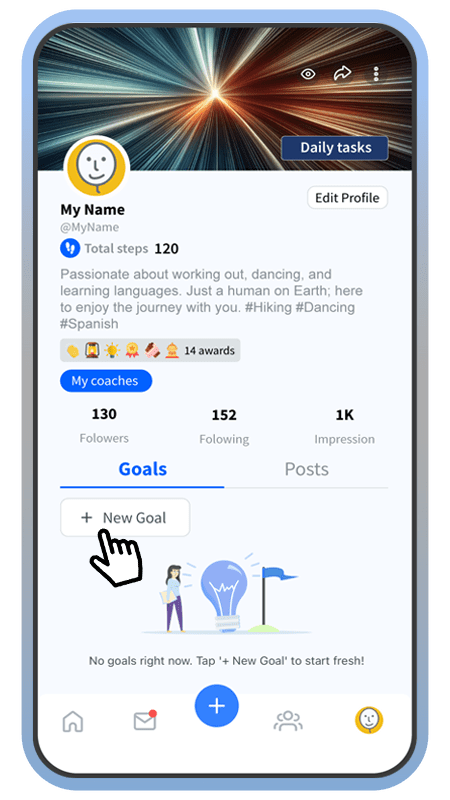
Select New Goal
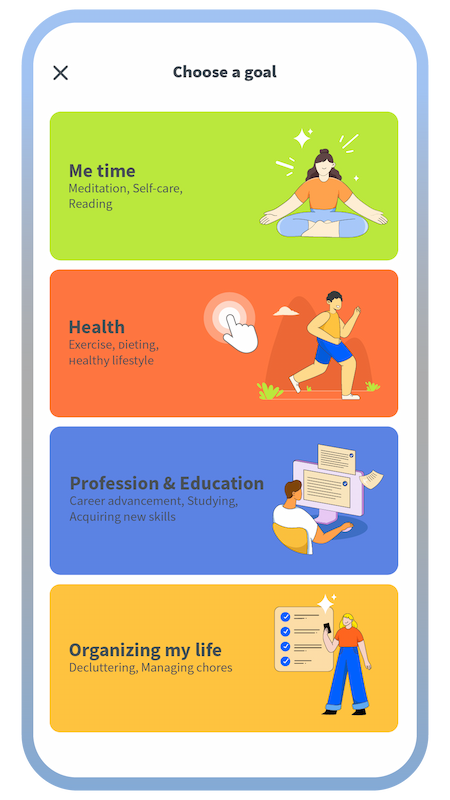
First, choose a category for your goal.
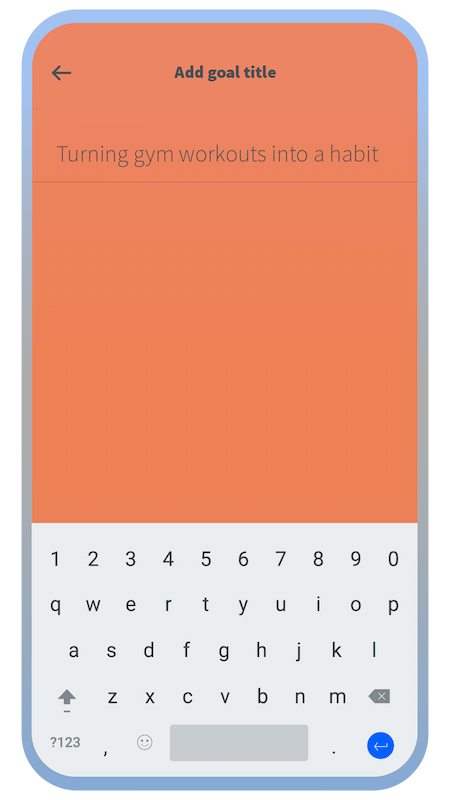
Choose a name for your goal.
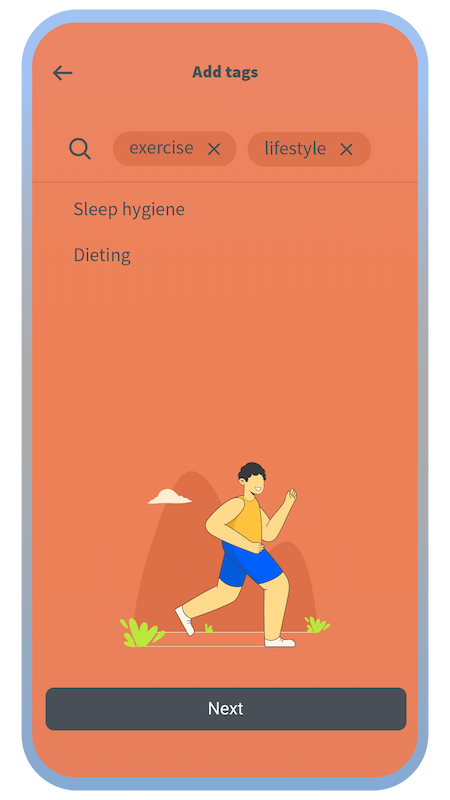
Add some tags to further define your goal.
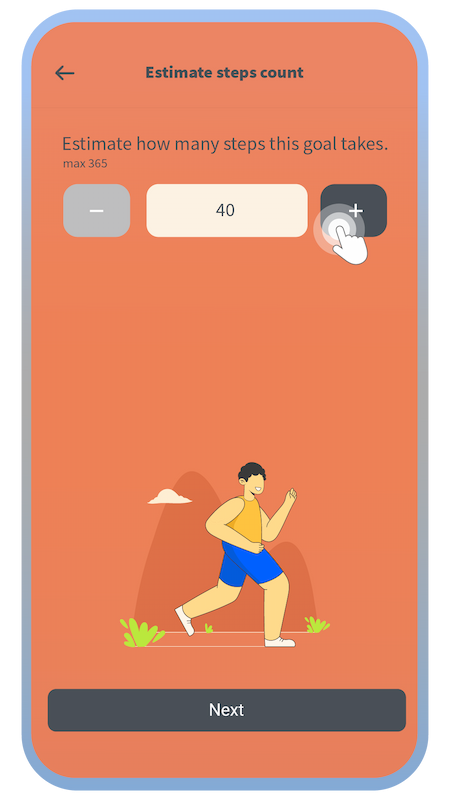
Estimate how many steps you need to accomplish this goal. (You can change this estimation later on.)
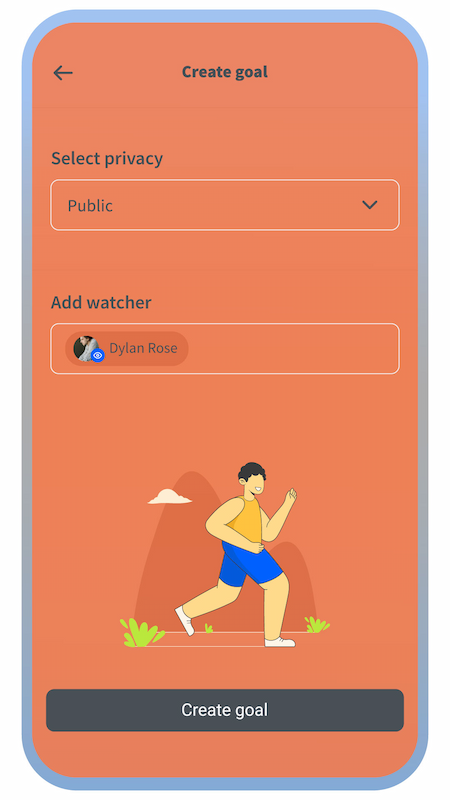
Select who can see your goal
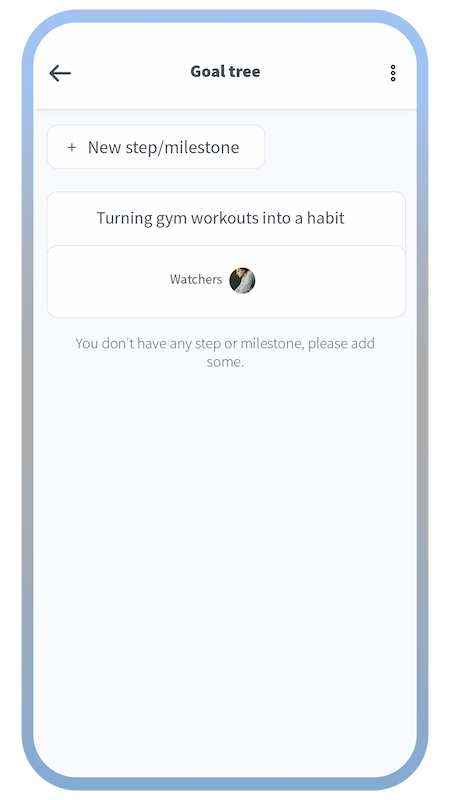
The goal is created, and now you can add steps or milestones to your goal.
How to create steps or milestones for a goal
Swipe to see more
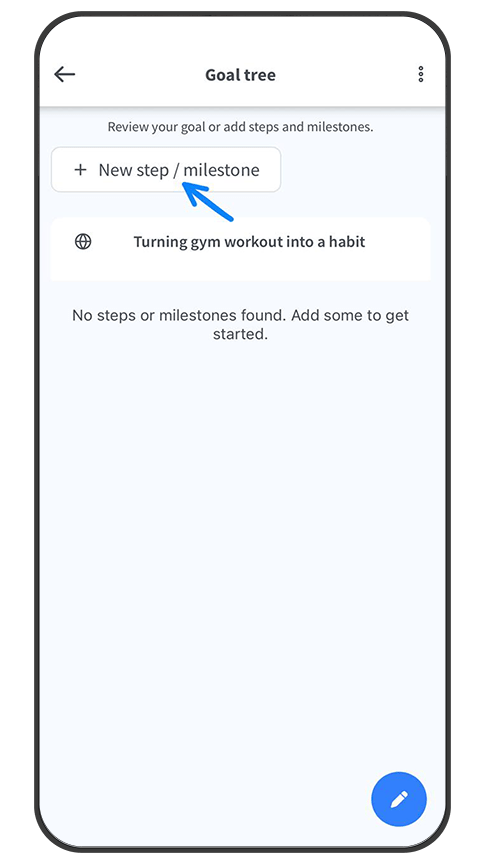
Tap the “+ New step/milestone” button on a goal tree page.
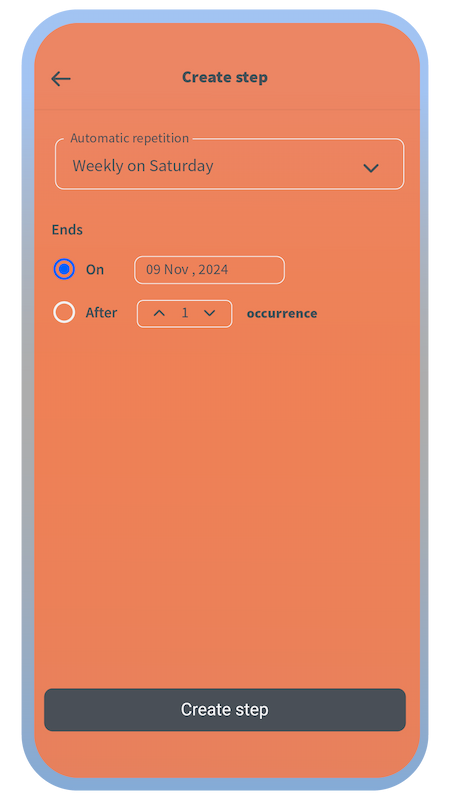
You will define the final date up to which the step series lasts.
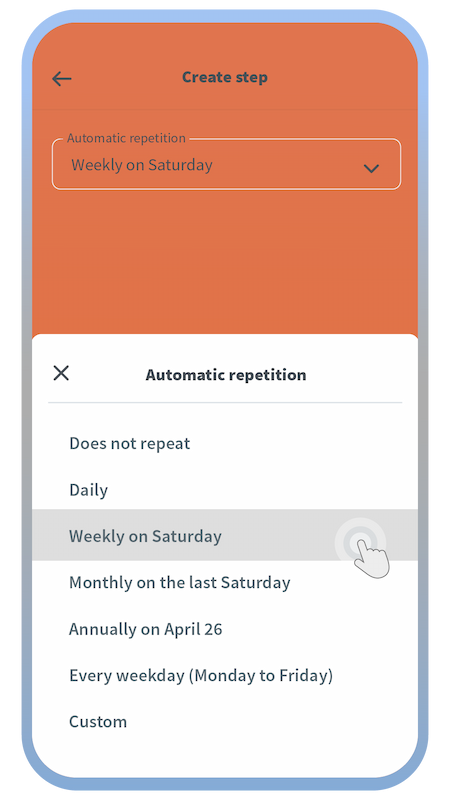
If a step is going to be repeated, you can create a series of steps at once using the automatic repetition feature.
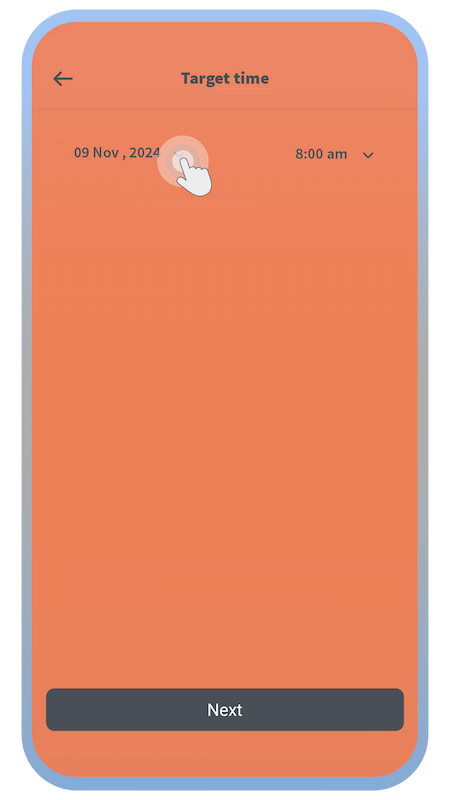
Choose the date and time by which the step will be accomplished.
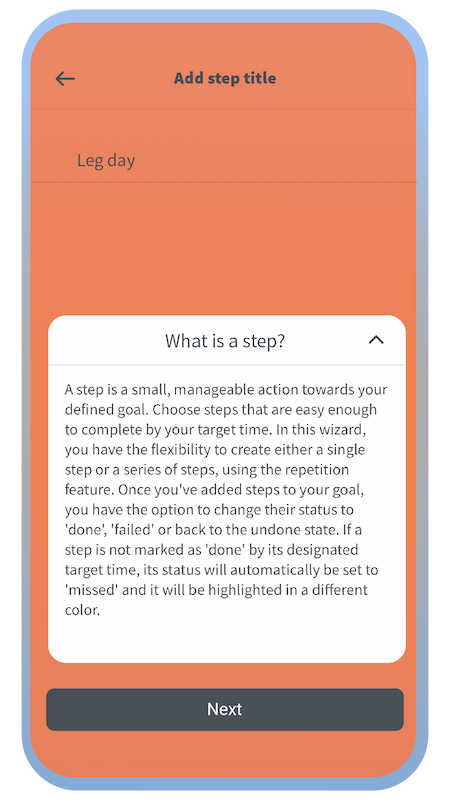
There are further explanations about steps in the app.
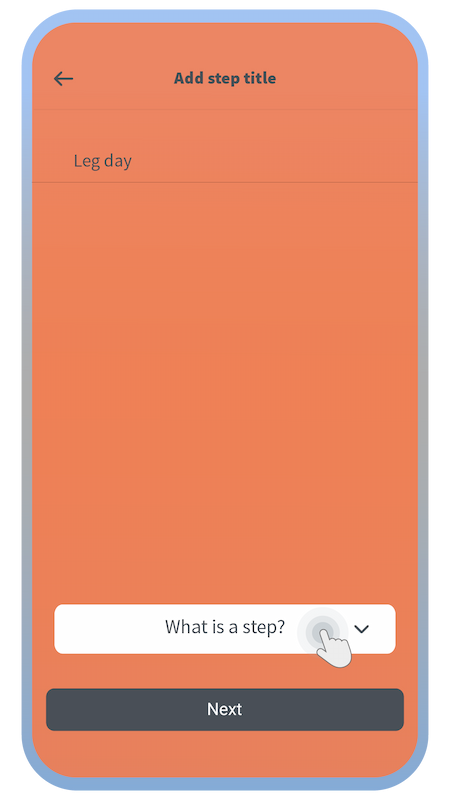
Choose a name for your step(s).
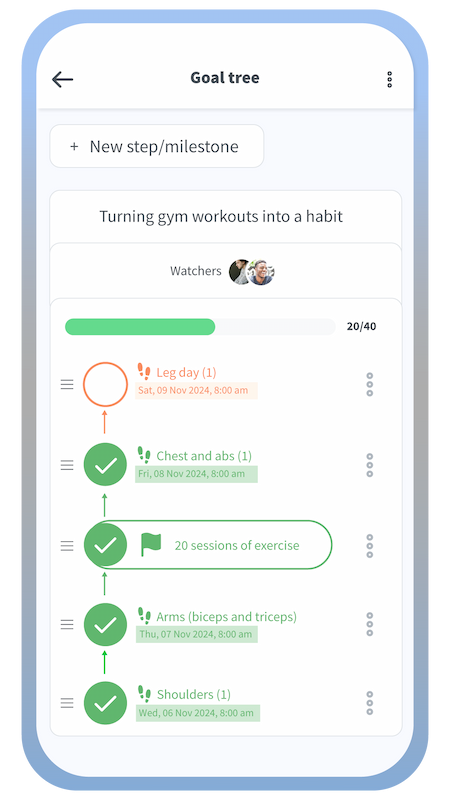
The created steps will be shown on the goal tree page. Milestones can be created in the same way.
How to create groups
(task forces and challenges)
Swipe to see more
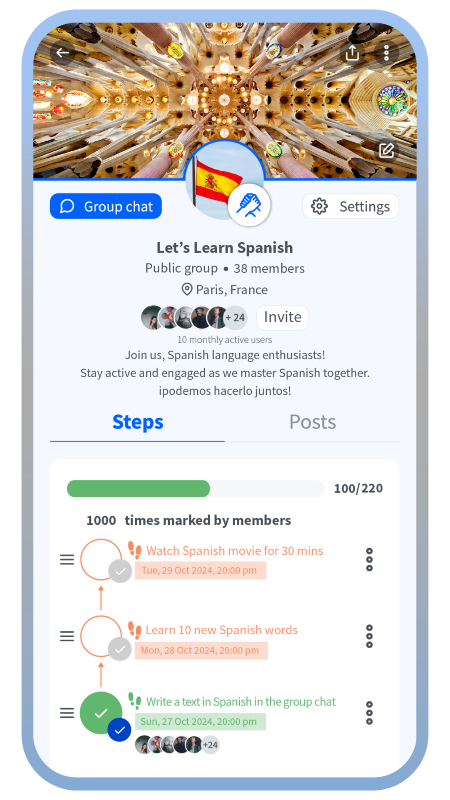
Each group step is considered done when a certain percentage of members mark it as done.
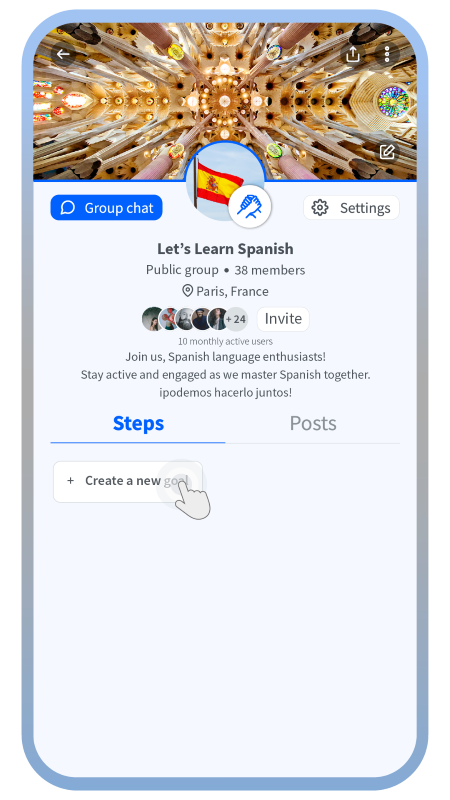
Once the group is created, you can create a goal for your group and then steps for that goal. Each group can have only one goal.
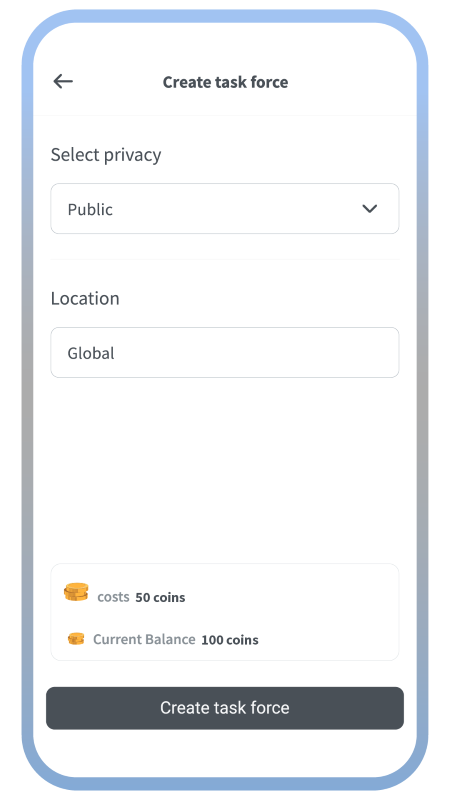
Define the privacy scope and location of your group.
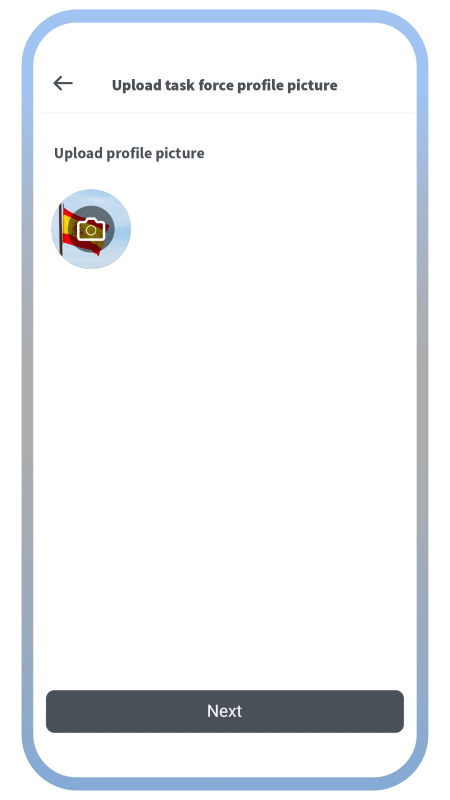
Choose a group photo.
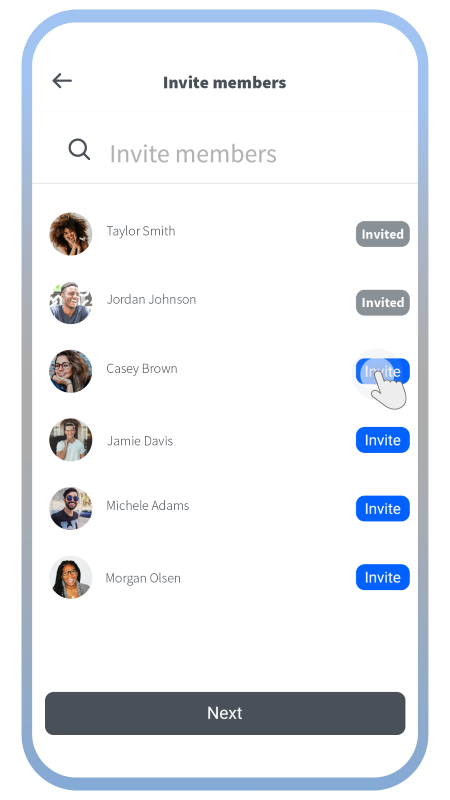
Invite your friends to your group.
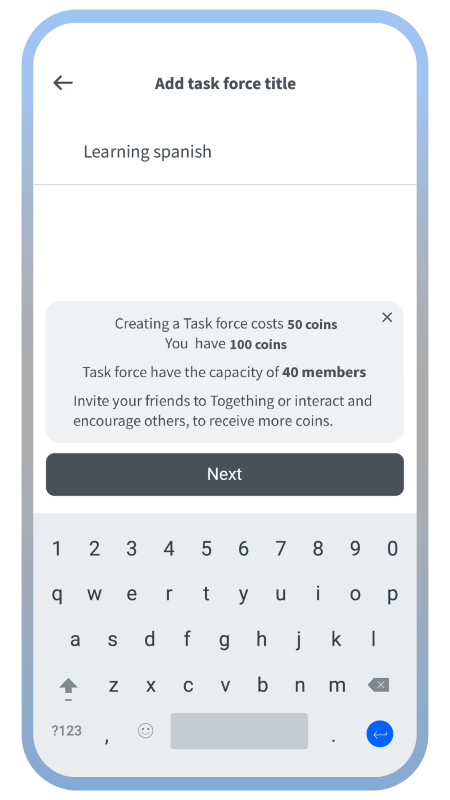
Choose a name for your task force group.
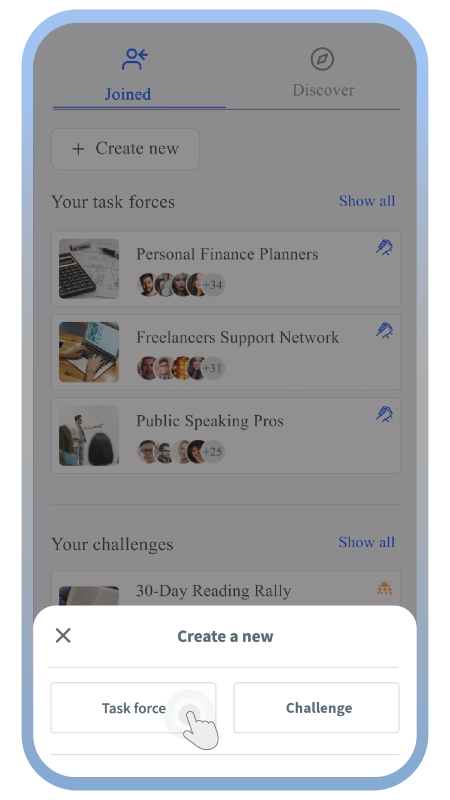
Choose which type of group you want to create. Task forces are unlimited in time and limited in members, while challenges last one month and can have unlimited members.
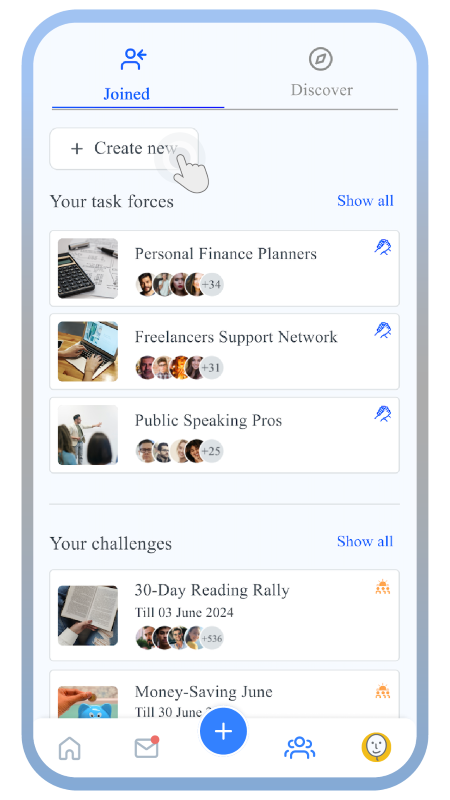
This is the page where you can see all the groups you have joined and can create a new group.
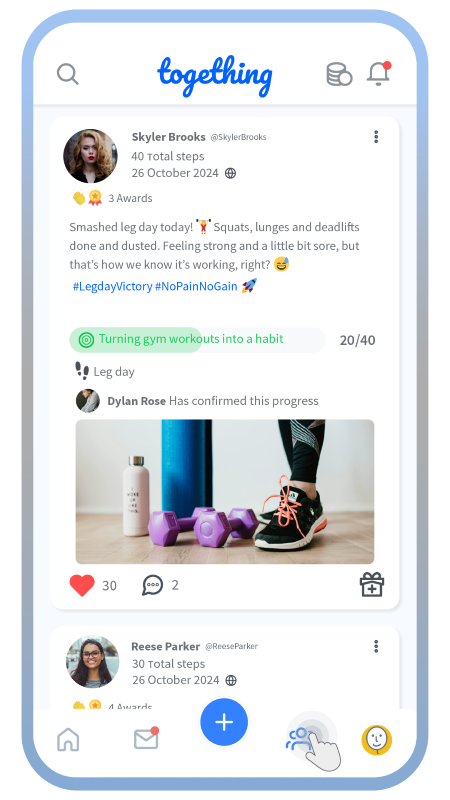
On the home screen, tap on the group tab.
Create a new post using the plus button
Swipe to see more
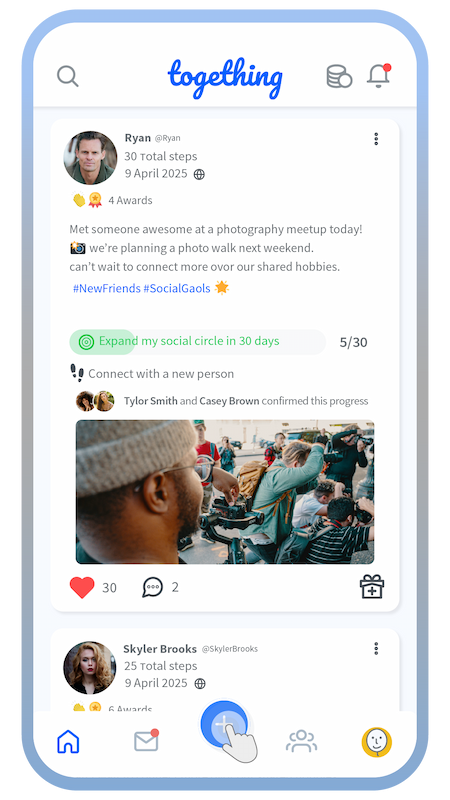
Tap on the big blue plus button on the home screen.
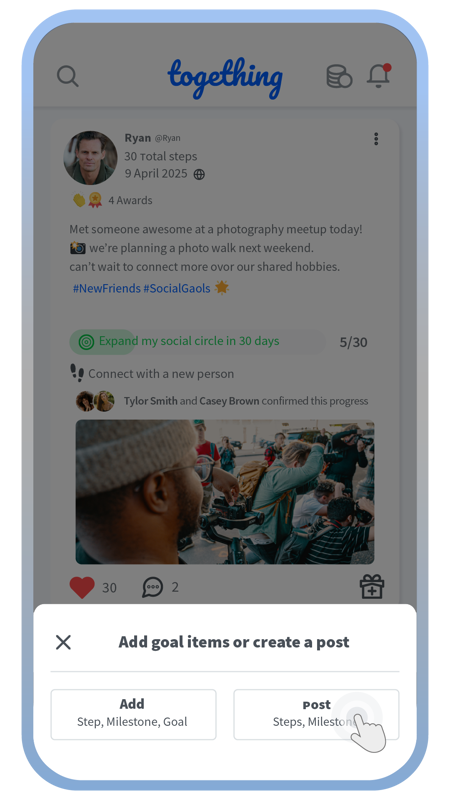
Tap on the post button.
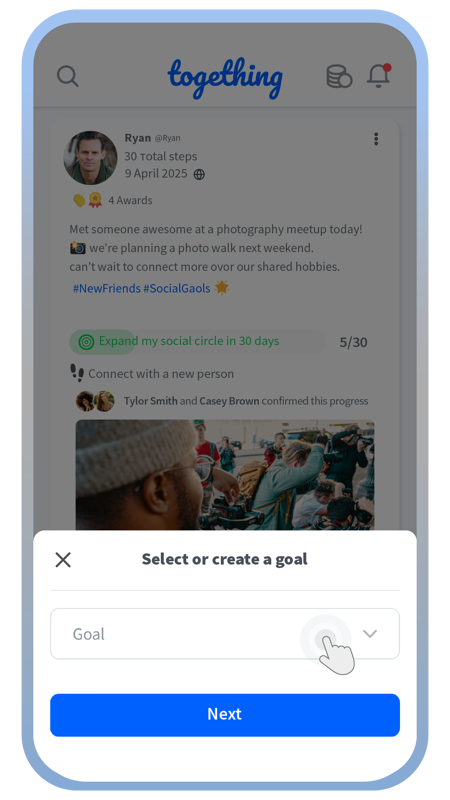
You can only create posts based on your existing goal items.
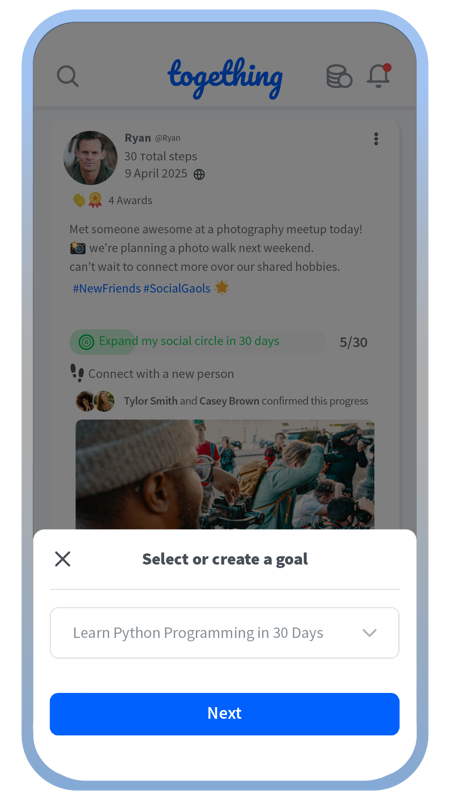
Choose the goal you’re going to create your post about its progress.
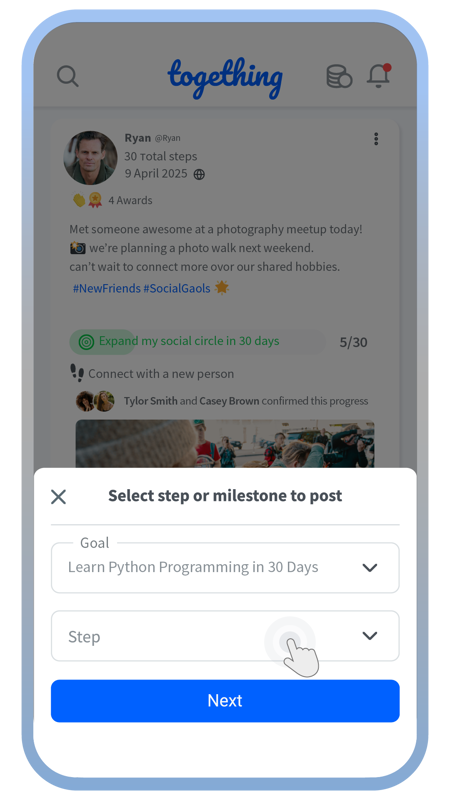
Choose the step in your selected goal to create the post about.
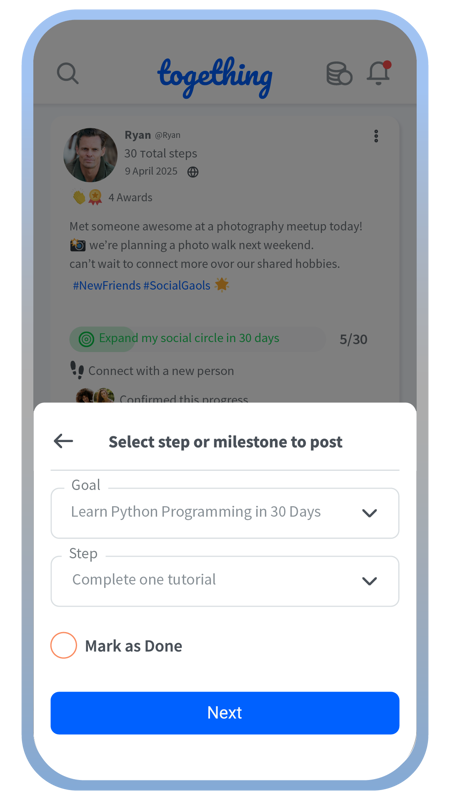
If you haven’t marked the goal as done, you can do it directly here.
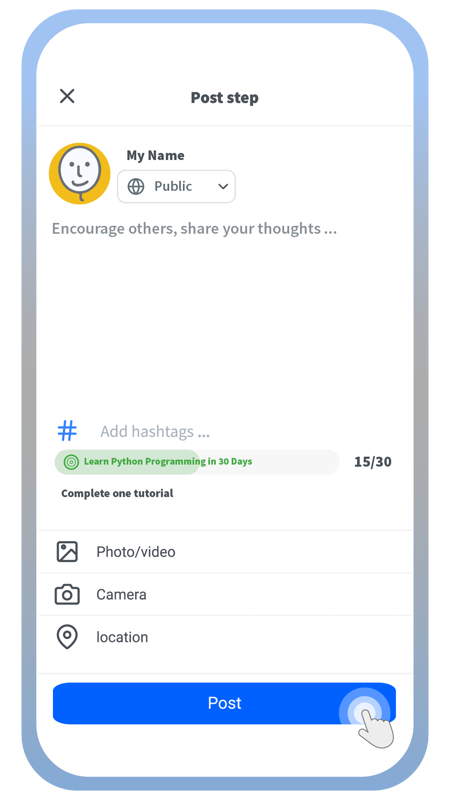
Then simply create your post and add hashtags, media, or location and define its privacy scope.
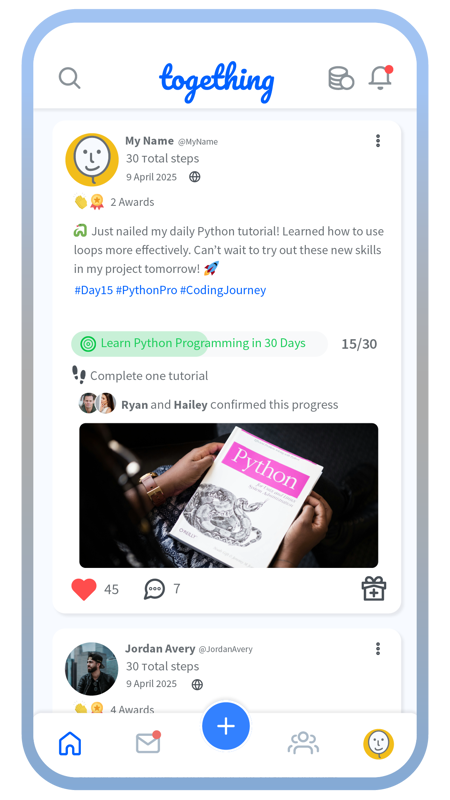
Your post will be visible to your target audience in their news feed.
Create a new post using the plus button
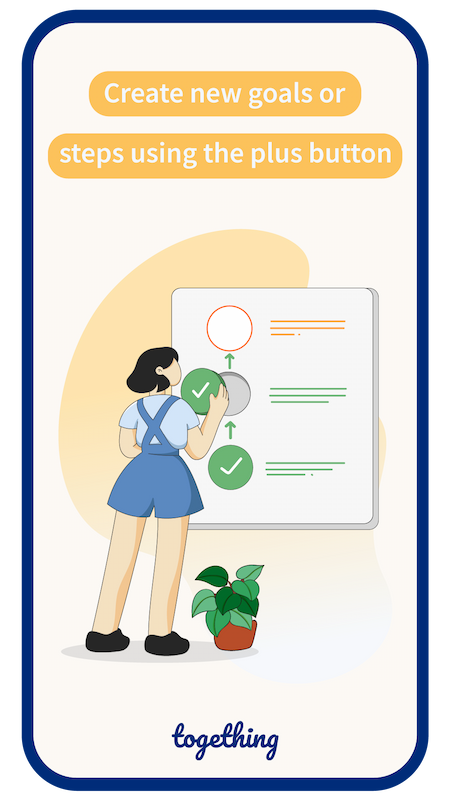
Swipe to see more
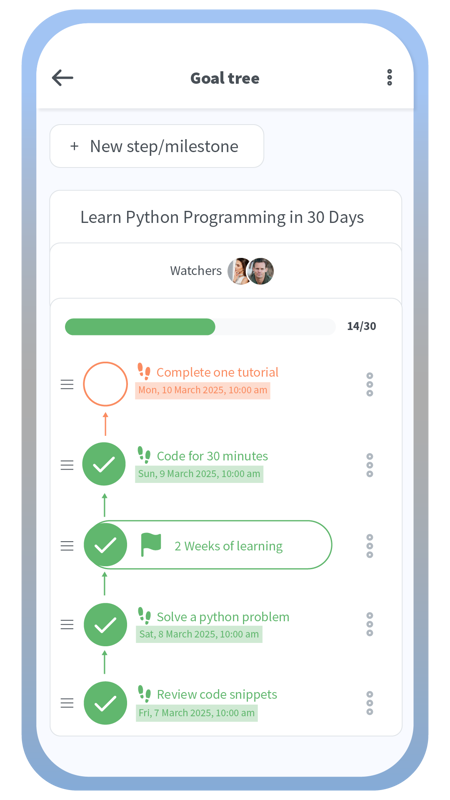
Review the created steps in your goal tree.
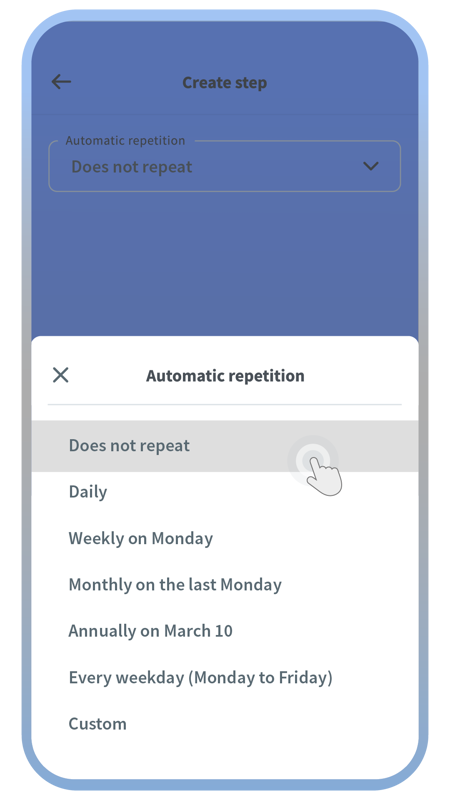
Choose if it’s a single step or a series of repeating steps.
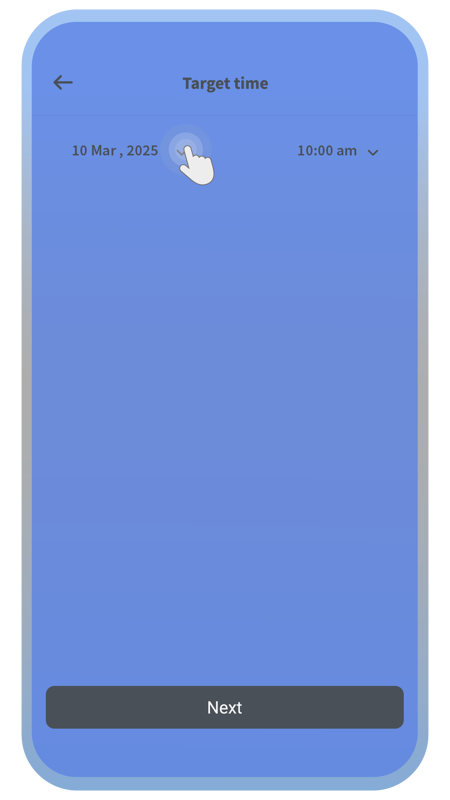
Choose a target time by which the step activity will be done.
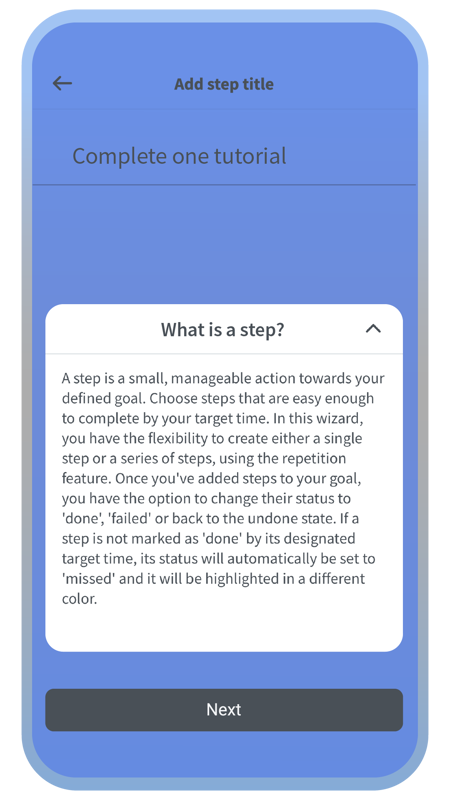
You can review the explanations about the meaning of a step.
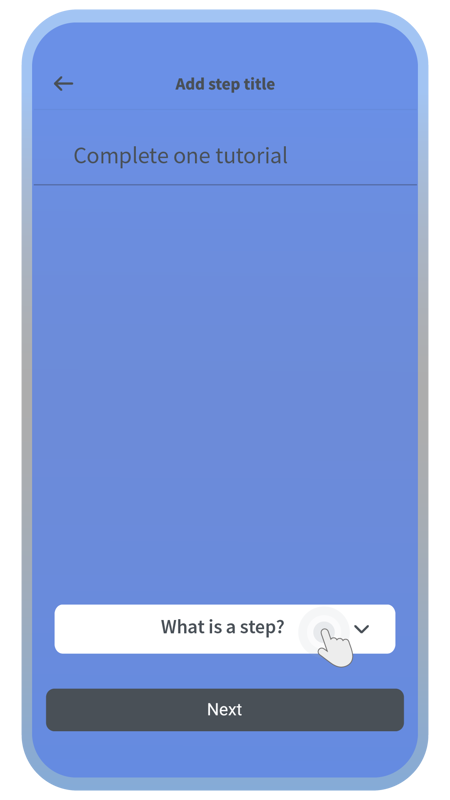
Choose the step title.
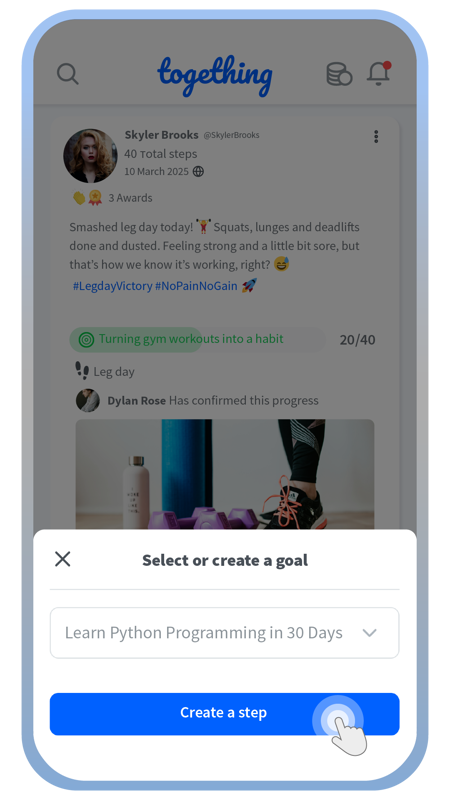
After choosing the goal, proceed with creating the steps as usual.
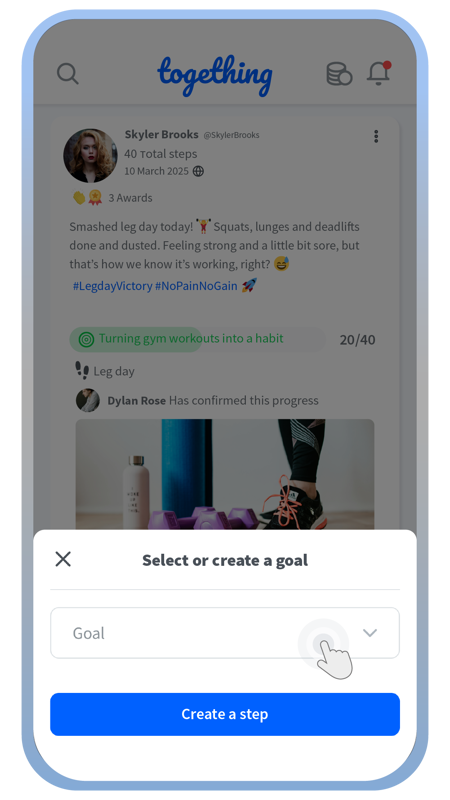
If you’re going to create new steps, you should define for which goal they will be created.
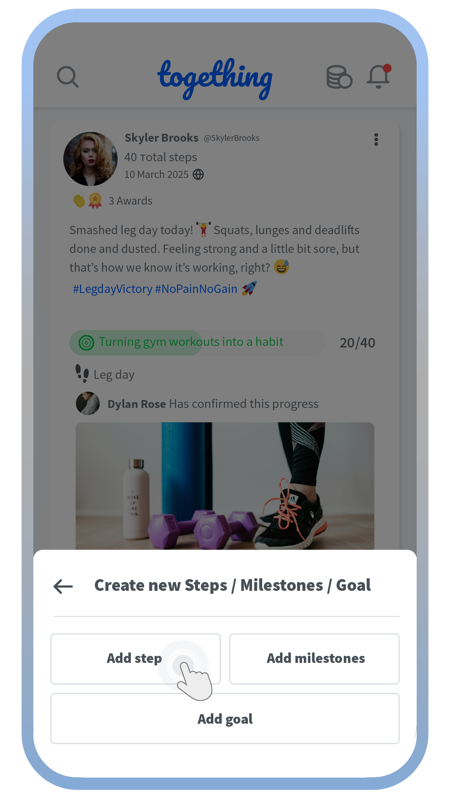
Choose between creating a new goal, new steps, or milestones.
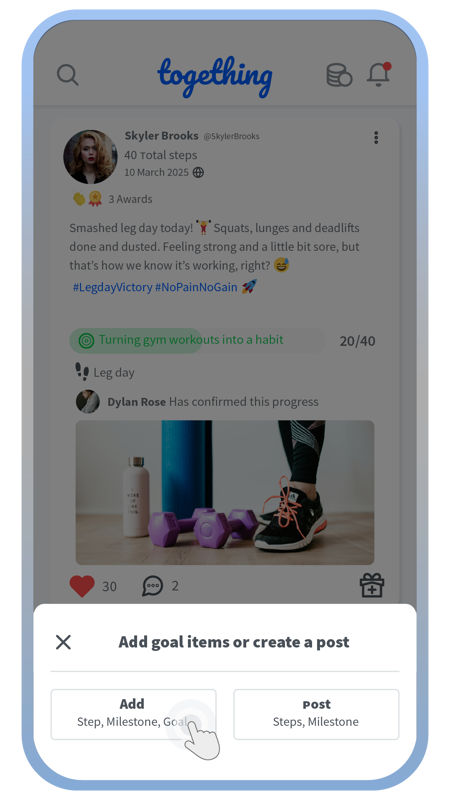
Choose the option for creating new goal items.
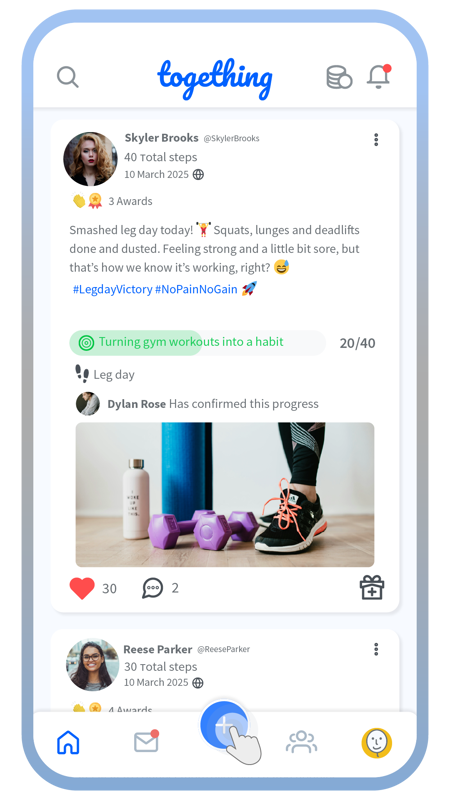
Start by tapping on the big blue plus button on the home screen.
Find accountability partners or choose "watchers" for your goals.
Swipe to see more
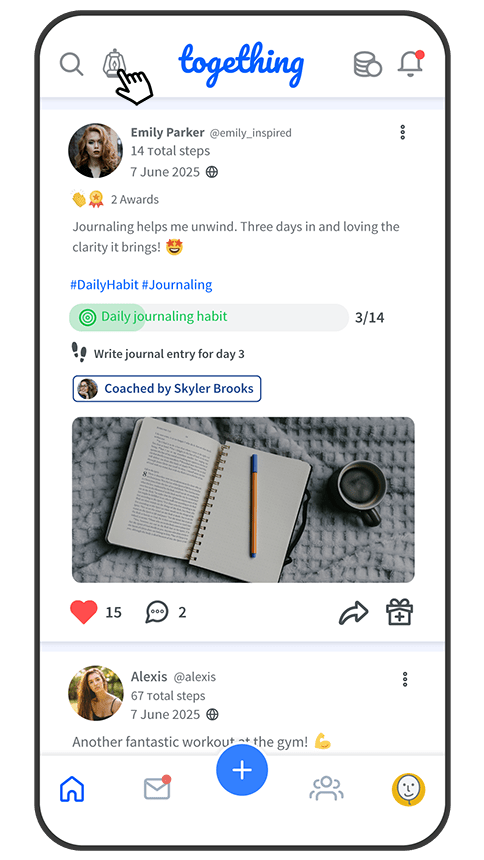
You can find the list of volunteers for accountability partnerships in the lantern menu.
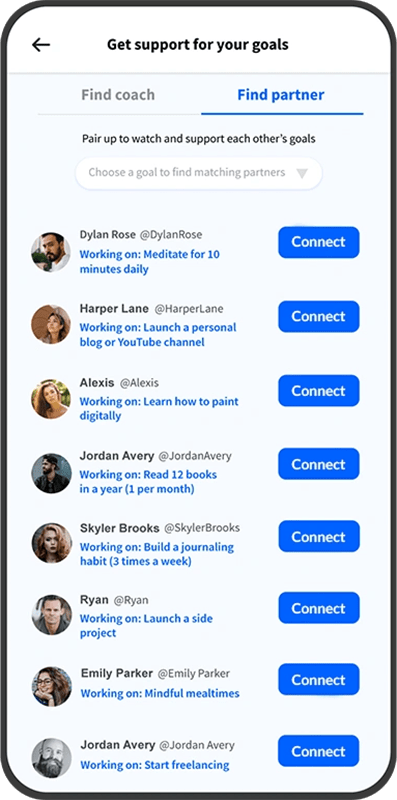
In the “Find partner” tab, select your own goal for which you need a partner and pair it with someone else’s listed goal.
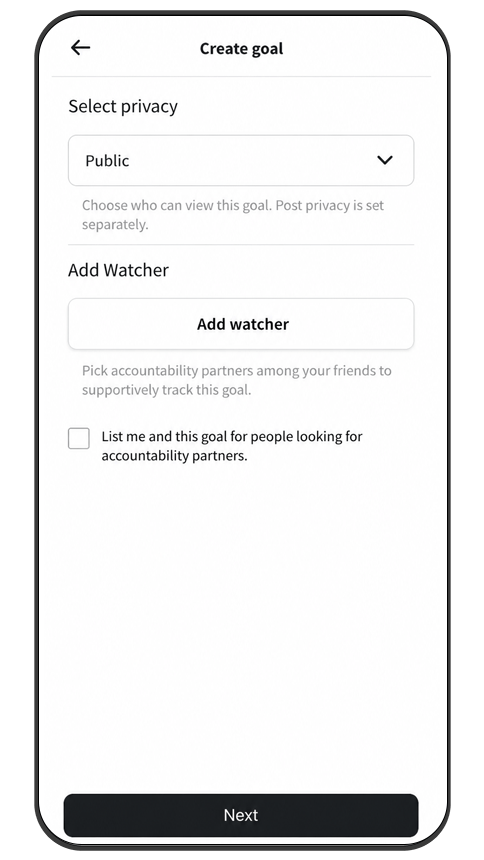
To be listed as an “open to accountability” volunteer, choose this option in the goal creation flow or when editing a goal.
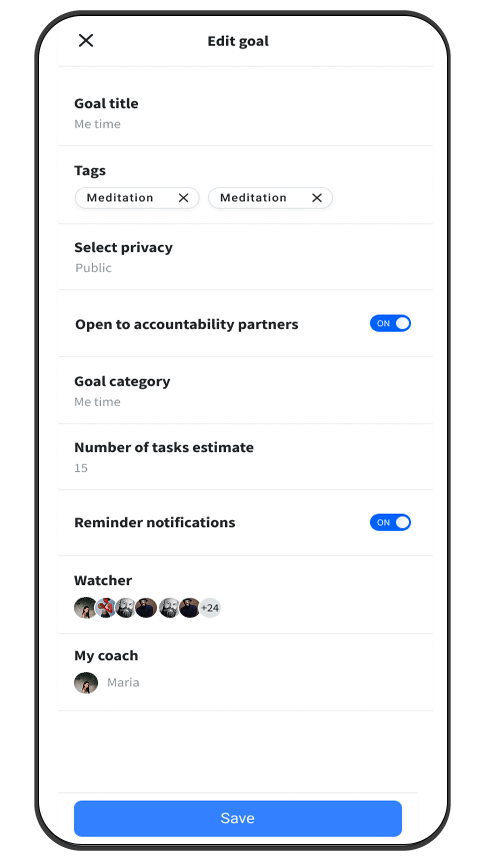
You can also choose a “watcher” among your friends (mutual followers) for any of your goals. Find the “Add watcher” option in the goal creation flow or the edit goal options.
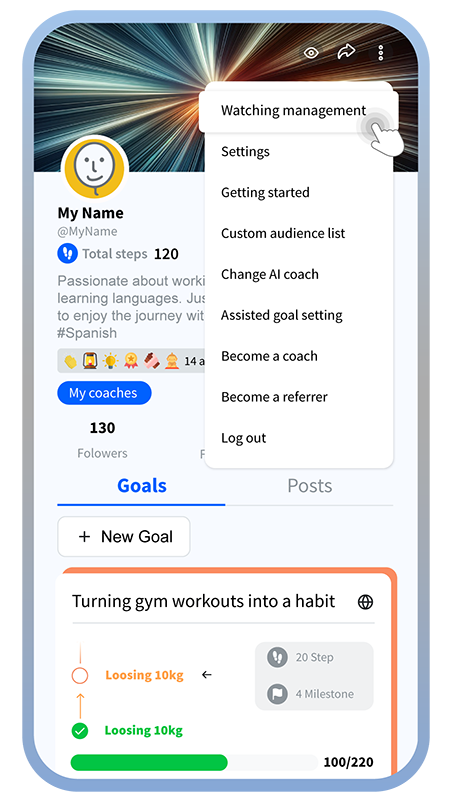
To confirm steps completed by your partners, manage your watchers, and manage the goals that you watch, go to “Watching management” using the “eye” icon or the option in your profile.
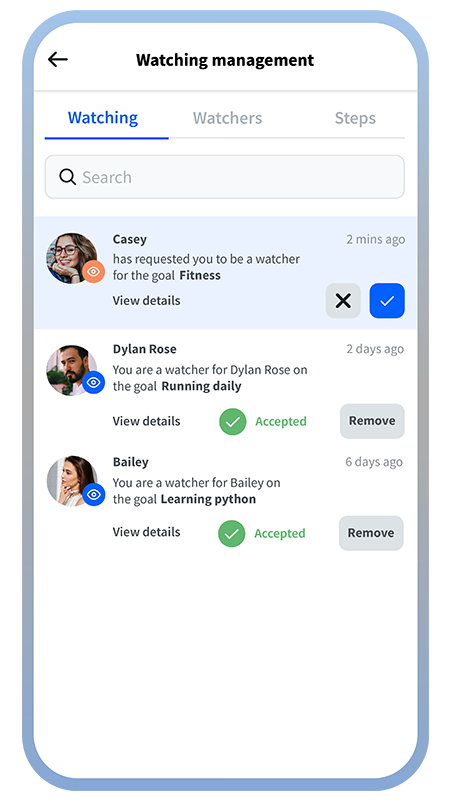
There are 3 tabs in Watching management: In the Watching tab, you can accept or decline your friends’ requests for you to be a watcher.
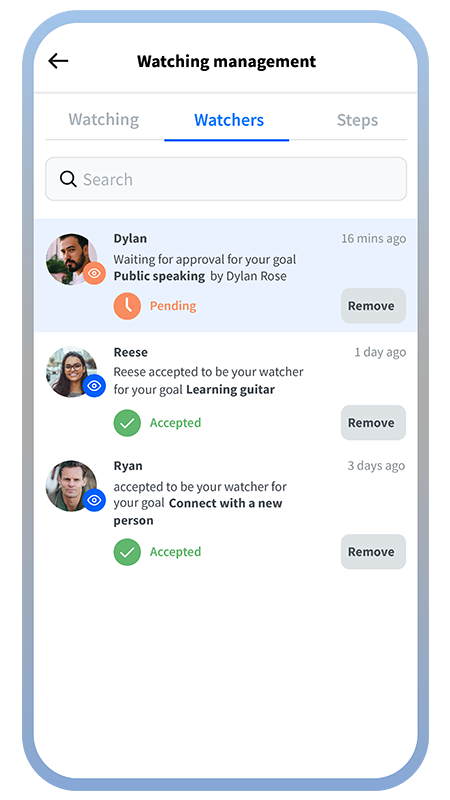
In the Watchers tab, you can review the list of friends who have agreed to watch your goals.
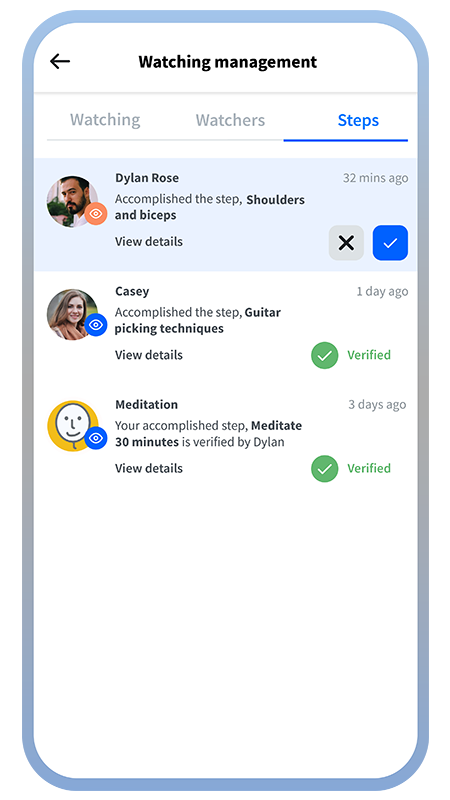
In the Steps tab, you can review and confirm accomplished steps from partners or friends whose goals you watch, and review your own steps that have been confirmed by your partners or watching friends.
Find professional coaches
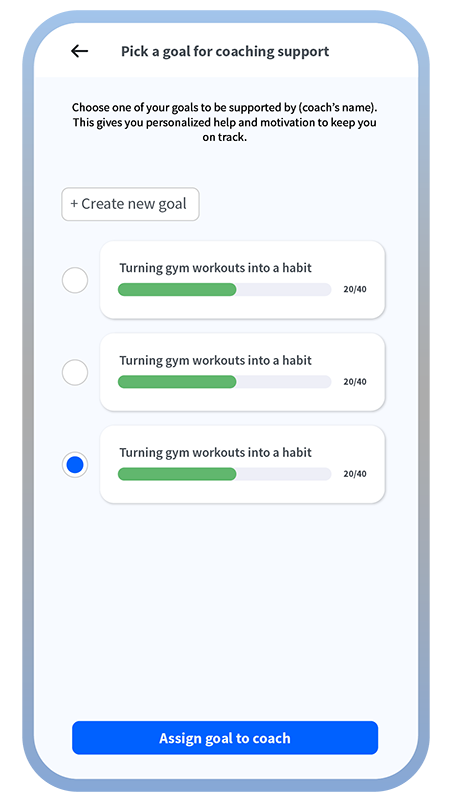
During the coach joining process, you’ll choose a goal to be supported by the coach.
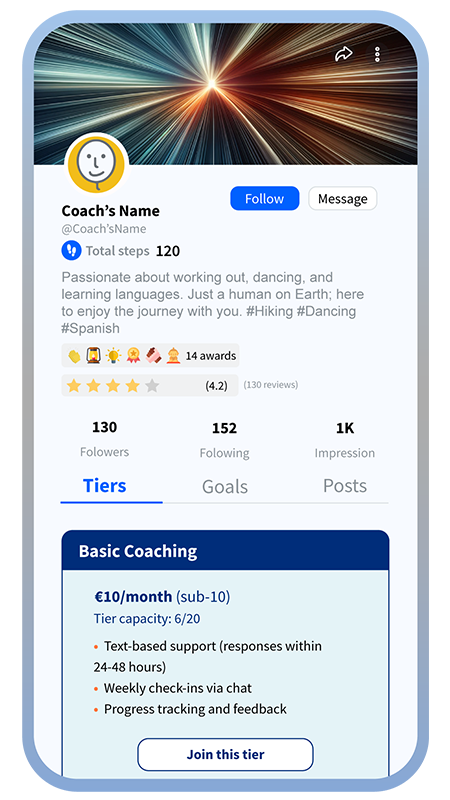
Then go to your chosen coach’s profile and join a tier using your allowance (balance).
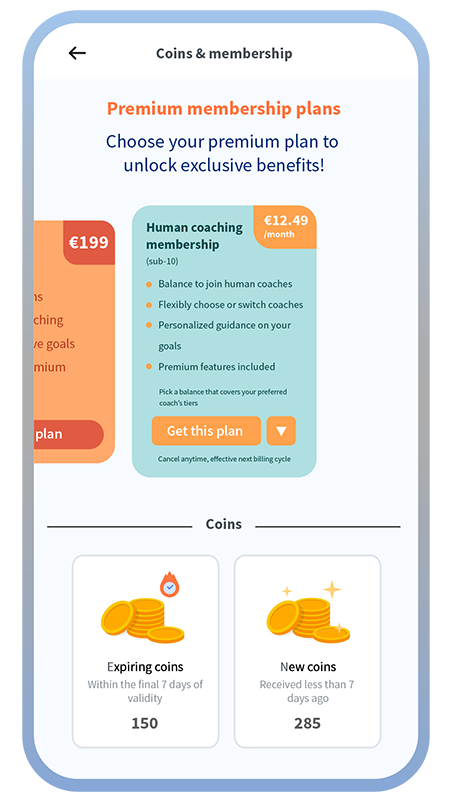
To join a coach, first subscribe to one of the Human coaching plans to get your monthly allowance.
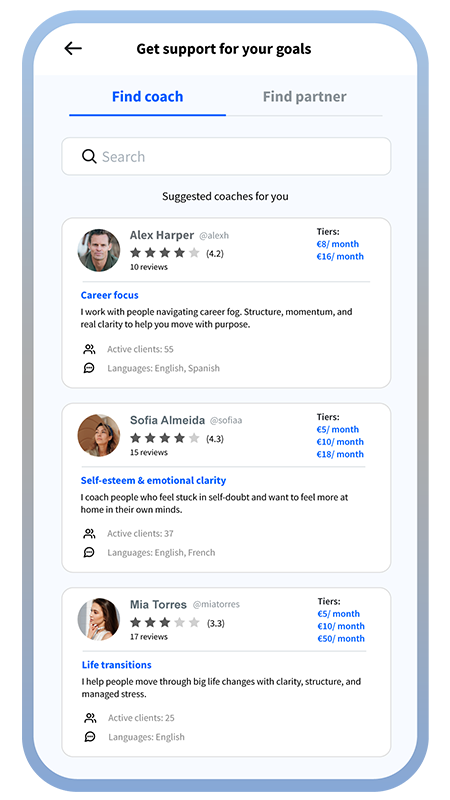
In the “Lantern” tab, you’ll find a list of verified professional coaches.
Select “Lantern”
Swipe to see more
Notifications
Swipe to see more
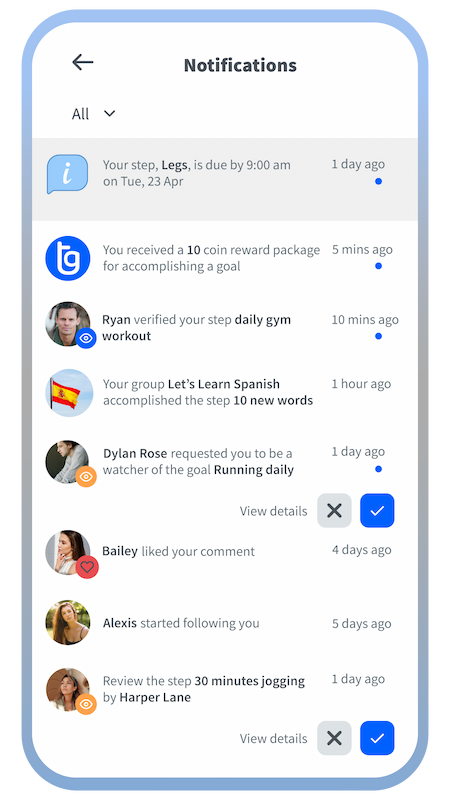
In the notification list, which is accessible from the ring icon on top of your home screen, you can get informed about different events in the app that need your attention.
Getting Started
Swipe to see more
Select New Goal
First, choose a category for your goal.
Choose a name for your goal.
Add some tags to further define your goal.
Estimate how many steps you need to accomplish this goal. (You can change this estimation later on.)
Select who can see your goal
The goal is created, and now you can add steps or milestones to your goal.
How to create a new goal
How to create steps or milestones for a goal
Swipe to see more
Tap the “+ New step/milestone” button on a goal tree page.
Choose a name for your step(s).
There are further explanations about steps in the app.
Choose the date and time by which the step will be accomplished.
If a step is going to be repeated, you can create a series of steps at once using the automatic repetition feature.
You will define the final date up to which the step series lasts.
The created steps will be shown on the goal tree page. Milestones can be created in the same way.
Swipe to see more
Tap on the big blue plus button on the home screen.
Tap on the post button.
You can only create posts based on your existing goal items.
Choose the goal you’re going to create your post about its progress.
Choose the step in your selected goal to create the post about.
If you haven’t marked the goal as done, you can do it directly here.
Then simply create your post and add hashtags, media, or location and define its privacy scope.
Your post will be visible to your target audience in their news feed.
Create a new post using the plus button
Find accountability partners or choose "watchers" for your goals.
Swipe to see more
You can find the list of volunteers for accountability partnerships in the lantern menu.
In the “Find partner” tab, select your own goal for which you need a partner and pair it with someone else’s listed goal.
To be listed as an “open to accountability” volunteer, choose this option in the goal creation flow or when editing a goal.
You can also choose a “watcher” among your friends (mutual followers) for any of your goals. Find the “Add watcher” option in the goal creation flow or the edit goal options.
To confirm steps completed by your partners, manage your watchers, and manage the goals that you watch, go to “Watching management” using the “eye” icon or the option in your profile.
There are 3 tabs in Watching management: In the Watching tab, you can accept or decline your friends’ requests for you to be a watcher.
In the Watchers tab, you can review the list of friends who have agreed to watch your goals.
In the Steps tab, you can review and confirm accomplished steps from partners or friends whose goals you watch, and review your own steps that have been confirmed by your partners or watching friends.
Swipe to see more
Select “Lantern”
In the “Lantern” tab, you’ll find a list of verified professional coaches.
To join a coach, first subscribe to one of the Human coaching plans to get your monthly allowance.
Then go to your chosen coach’s profile and join a tier using your allowance (balance).
During the coach joining process, you’ll choose a goal to be supported by the coach.
Find professional coaches
Create new goals or steps using the plus button
Swipe to see more
Start by tapping on the big blue plus button on the home screen.
Choose the option for creating new goal items.
Choose between creating a new goal, new steps, or milestones.
If you’re going to create new steps, you should define for which goal they will be created.
After choosing the goal, proceed with creating the steps as usual.
Choose the step title.
You can review the explanations about the meaning of a step.
Choose a target time by which the step activity will be done.
Choose if it’s a single step or a series of repeating steps.
Review the created steps in your goal tree.
Swipe to see more
On the home screen, tap on the group tab.
This is the page where you can see all the groups you have joined and can create a new group.
Choose which type of group you want to create. Task forces are unlimited in time and limited in members, while challenges last one month and can have unlimited members.
Choose a name for your task force group.
Invite your friends to your group.
Choose a group photo.
Define the privacy scope and location of your group.
Once the group is created, you can create a goal for your group and then steps for that goal. Each group can have only one goal.
Each group step is considered done when a certain percentage of members mark it as done.
How to create groups
(task forces and challenges)
(task forces and challenges)
Notification
Swipe to see more
In the notification list, which is accessible from the ring icon on top of your home screen, you can get informed about different events in the app that need your attention.